

The iPhone 15 and later have a USB-C port that can do more than charge your phone. You can plug in an external SSD, import photos from an SD card, connect wired headphones, or top up your AirPods or Apple Watch. Most USB-C iPhones can also connect to a monitor or TV. Here’s what works with your iPhone and which cables or adapters you’ll need.
Apple switched from Lightning to USB-C with the iPhone 15 lineup in 2023. Every iPhone released since then has USB-C, but file transfer speeds and support for wired monitors and TVs vary by model.
| iPhone models | Maximum USB data speed | Wired monitor or TV support |
|---|---|---|
| iPhone 15 Pro and Pro Max, 16 Pro and Pro Max 17 Pro and Pro Max, 18 Pro and Pro Max, and iPhone Duo | USB 3, up to 10Gbps | Yes |
| iPhone 15 and 15 Plus, iPhone 16 and 16 Plus, and iPhone 17 | USB 2, up to 480Mbps | Yes |
| iPhone 16e, iPhone 17e, and iPhone Air | USB 2, up to 480Mbps | No |
The USB-C cable that comes with your iPhone supports charging and data transfers at up to 480Mbps. To get up to 10Gbps when copying files to an external SSD or computer, you’ll need a compatible iPhone from the first row, a USB-C cable rated for 10Gbps, and a drive or computer port that supports that speed.
Rival companies like Samsung have long supported reverse wireless charging, letting you turn your smartphone into a portable Qi charging pad. That usually means flipping your phone over and leaving it face down while the other device charges. With the iPhone 15, Apple introduced its own take on reverse charging using the USB-C port.
Your iPhone can deliver up to 4.5W of power, enough to top up your AirPods, Apple Watch, or even a friend’s compatible Android phone when you’re away from an outlet. For AirPods, grab a USB-C-to-USB-C or USB-C-to-Lightning cable, depending on the port on your charging case. To charge an Apple Watch, plug its USB-C magnetic charging cable into your iPhone and place the watch on the puck.
Most of us have seen the iPhone’s storage-full alert. If you’d rather keep a local copy of your files than rely on iCloud, you can plug an external SSD or USB flash drive into your iPhone’s USB-C port. It’s an easy way to move large files off your phone and free up space.
A compact Samsung Type-C Flash Drive ($80) is a handy option for everyday transfers. If you’re using a drive that needs more power than the iPhone can supply, connect it through a powered USB hub.
If you shoot ProRes video on an iPhone 15 Pro through iPhone 18 Pro, including the Pro Max models, you can record directly to a compatible external SSD. ProRes files take up a lot of space, so recording to a drive can help you shoot longer without filling up your iPhone. For 4K at 60 fps, use an exFAT-formatted SSD that can sustain write speeds of at least 220 MB/s and a 10Gbps USB-C data cable.
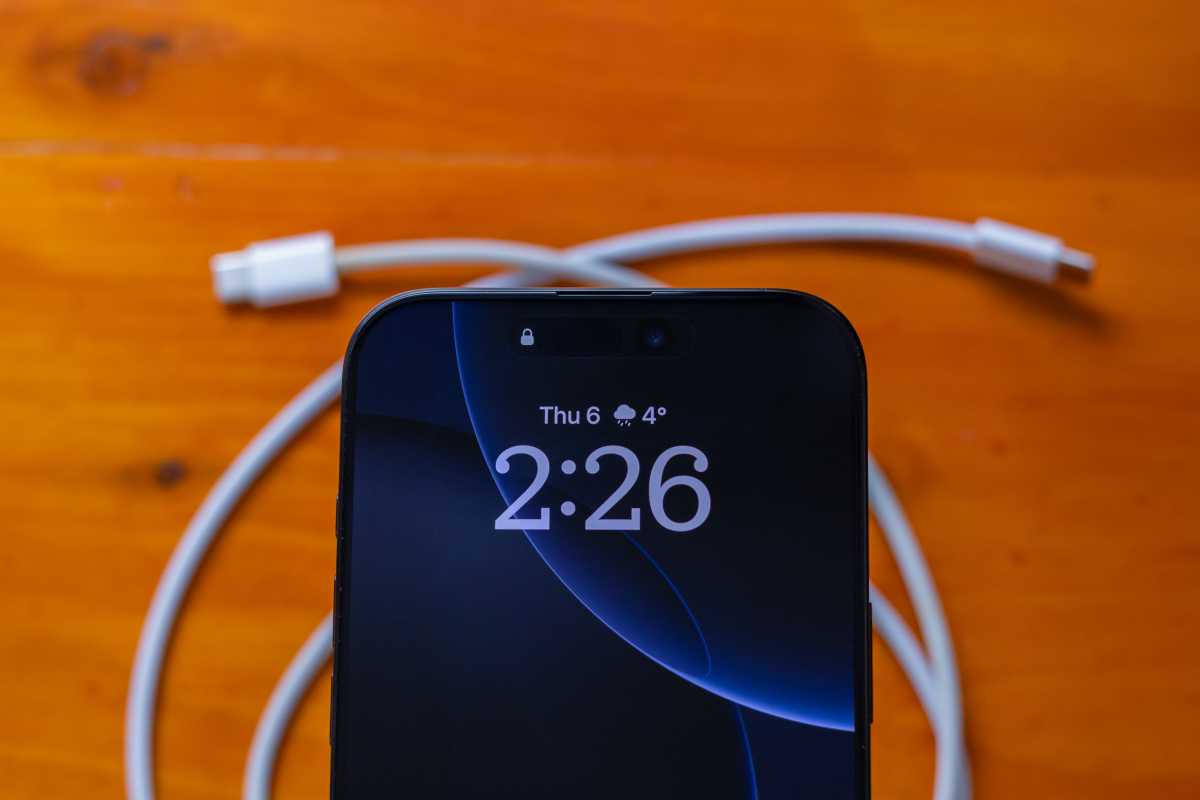
Your iPhone’s USB-C cable can do more than just charge your iPhone.
Foundry
Photographers and videographers love the handy SD card slots on the MacBook Pro and Mac Studio, and a wired SD card reader brings that same convenience to your iPhone. While many newer cameras support wireless photo transfers through their companion apps, plugging in the card can be quicker when you have a lot of photos or videos to import.
Plug a reader such as Apple’s USB-C to SD Card Reader ($39) into your iPhone’s charging port and insert the card from your camera. Open Photos, tap Import, then choose Import All or select the photos and videos you want to copy. To browse the card’s folders or copy other files, open Files, tap Browse, and select the card under Locations.
You can also use the same reader with a USB-C Mac or iPad when you want to edit on a larger screen. See our roundup of the best USB-C adapters.
If you’re staying at a hotel that blocks wireless casting, you may still be able to mirror your iPhone’s screen by plugging it into the TV. First, check your model. The iPhone 16e, iPhone 17e, and iPhone Air lack wired video output over USB-C. With those models, you can use AirPlay if the hotel TV supports it, or stream to an Apple TV.
If your iPhone supports wired video and the TV has an accessible HDMI port, use a USB-C-to-HDMI cable or plug Apple’s USB-C Digital AV Multiport Adapter ($69) into your iPhone and connect it to the TV with a separate HDMI cable. Switch the TV to that HDMI input. With a compatible TV, Apple’s adapter supports up to 4K at 60Hz.
If your monitor has a USB-C video input, you can plug your iPhone directly into it using the cable that came with the monitor or another USB-C cable that supports DisplayPort video. Unfortunately, the charging cable included with your iPhone won’t work for this.
Check out our roundups of the best monitors and best portable monitors.
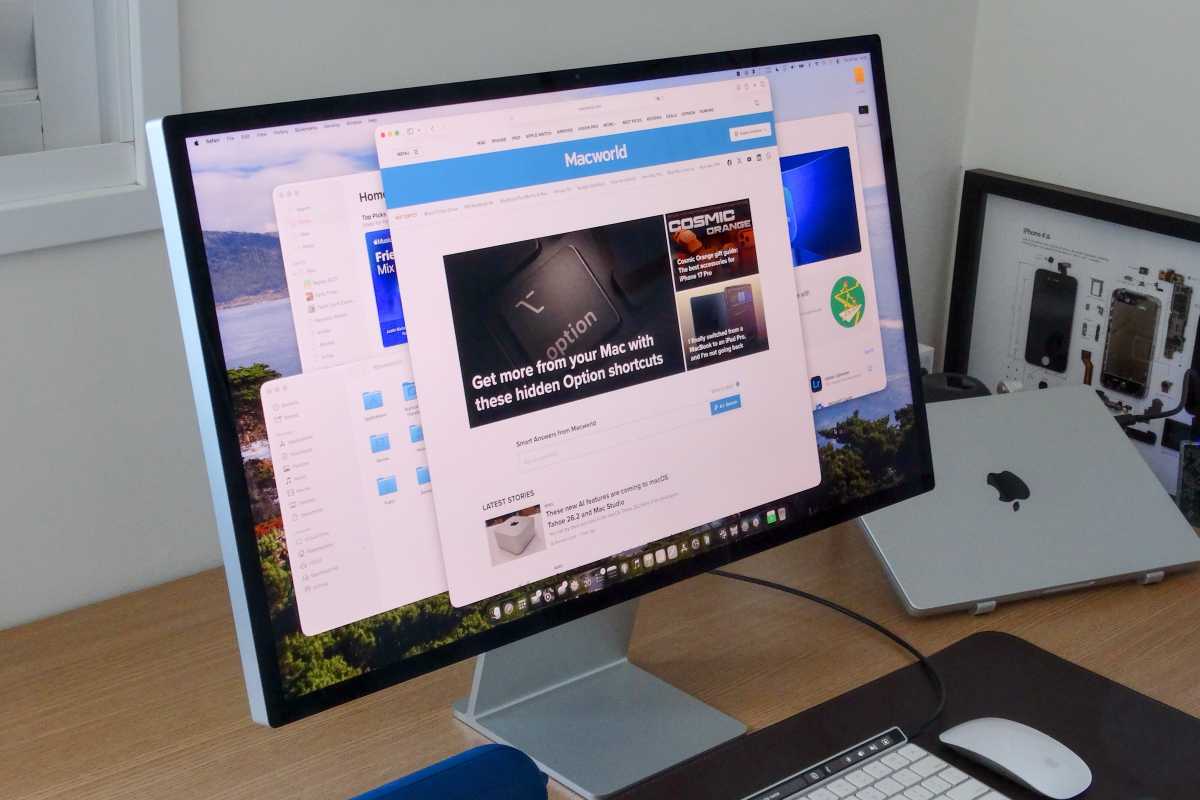
Your iPhone can connect to most displays with a single cable.
Foundry
Apple introduced wireless CarPlay a few years ago, but if your car only supports wired CarPlay, you’ll still need to plug your iPhone into the car’s USB port. Look for a CarPlay or smartphone icon beside the port, then use a USB-C-to-USB-A cable if it’s a rectangular USB-A port, or a USB-C-to-USB-C cable if it’s USB-C. Make sure the cable supports both data and charging, is long enough to reach the port, and is flexible enough to route around any knobs or vents.
A coiled cable can help keep the extra length out of the way. These popular Chubby Cable car-charging cables come in USB-C-to-USB-C and USB-C-to-USB-A versions for $20, with a variety of colors to choose from. If your iPhone charges but CarPlay doesn’t appear, check that you’re plugged into the port designated for CarPlay and try a different cable that supports data.
Read further: Best magnetic wireless and USB car chargers and mounts for iPhone.
While iPads and Macs are better suited for long-form typing, iPhones—especially the near-7-inch Plus and Pro Max models—can still handle productivity tasks effectively. To make the most of the relatively small screen, though, you may want to pair it with a dedicated keyboard. Fortunately, iOS natively supports this through the USB-C port.
Most standard keyboards, such as this compact Macally keyboard ($30), will work with your iPhone just fine. See our roundup of the best Mac keyboards. Or if you want to always have a keyboard with you, you can opt for a Clicks case ($139), which connects to your USB-C port so it’s always ready for a text or email.
In the era of TikTok, everyone is a content creator, so a high-quality microphone is an essential tool. Fortunately, your iPhone’s USB-C port can support a wide range of them, letting you pair your footage with crystal-clear high-quality audio. One reliable option is the Rode Wireless Micro ($85), which utilizes your iPhone’s port while maintaining the convenience of wireless recording.
Thanks to the A17 and A18 chips, the latest Pro-tier iPhones can run some AAA games. Notably, though, these titles typically need a controller, as touch controls don’t always offer the best gameplay, if they’re available at all. While Sony’s DualSense controller ($75) supports Bluetooth pairing, opting for wired mode using the iPhone’s USB-C port can minimize latency and enhance overall performance.
Speaking of gaming, the iPhone fully supports Ethernet dongles, allowing for faster download and upload speeds. While Wi-Fi and 5G are sufficient for most users, Ethernet can come in handy when seeking an even more dependable connection. Belkin’s USB-C to Ethernet Adapter ($23) is one of the solid options that is guaranteed to get the job done.
There are many accessories that you can plug into your iPhone’s USB-C port, but none are cooler than a borescope/endoscope camera. Basically, it’s a snake wire with a tiny HD endoscope camera at the end and an LCD light. It’s flexible yet rigid enough to fit into the smallest of crevices, and you’ll wonder how you ever lived without it. We haven’t tested them, but this model has a 4.3-star rating with nearly 7,000 reviews and costs just $30.

You can attach a tiny USB-C camera to your iPhone’s USB-C port to see into small places.
Amazon
With temperatures steadily rising all around the world, we can all use a little relief during long days outdoors. Your iPhone’s USB-C port can help there too. This 17,000 RPM ,4-setting high-speed fan ($15) plugs directly into your iPhone’s USB-C port and offers a “focused airflow channel that generates a high-speed airflow of up to 36 ft/s.” Reviewers praise its size, portability, and low-power requirements, but you’ll just appreciate a quick blast of cool air when you’re overheating.
When you’re not using your iPhone’s USB-C port, it’s just a gaping hole at the bottom of your phone waiting to collect dust, dirt, and lint. A USB-C plug will make sure your port stays clean and clear for as long as you use your iPhone. You can get a bunch of them ($7) for just a few bucks, or you can get one that sticks to the back of your phone ($8), so you don’t keep losing them. An added bonus: it doubles as a handy pinky rest when you’re using your iPhone with one hand.
Read further: How to stop dust, dirt, and lint from getting into your iPhone charging port.
The biggest detriment of the iPhone is that there’s just one port, but a USB hub can give you much more. We recommend the Plugable 7-in-1 USB-C Hub Multiport Adapter ($40), which will bring a headphone jack, USB-C charging, HDMI, an SD card reader, Ethernet, and even a couple of USB-A ports for good measure. It’s not exactly small, but if you need to use several ports at once, there’s no substitute.
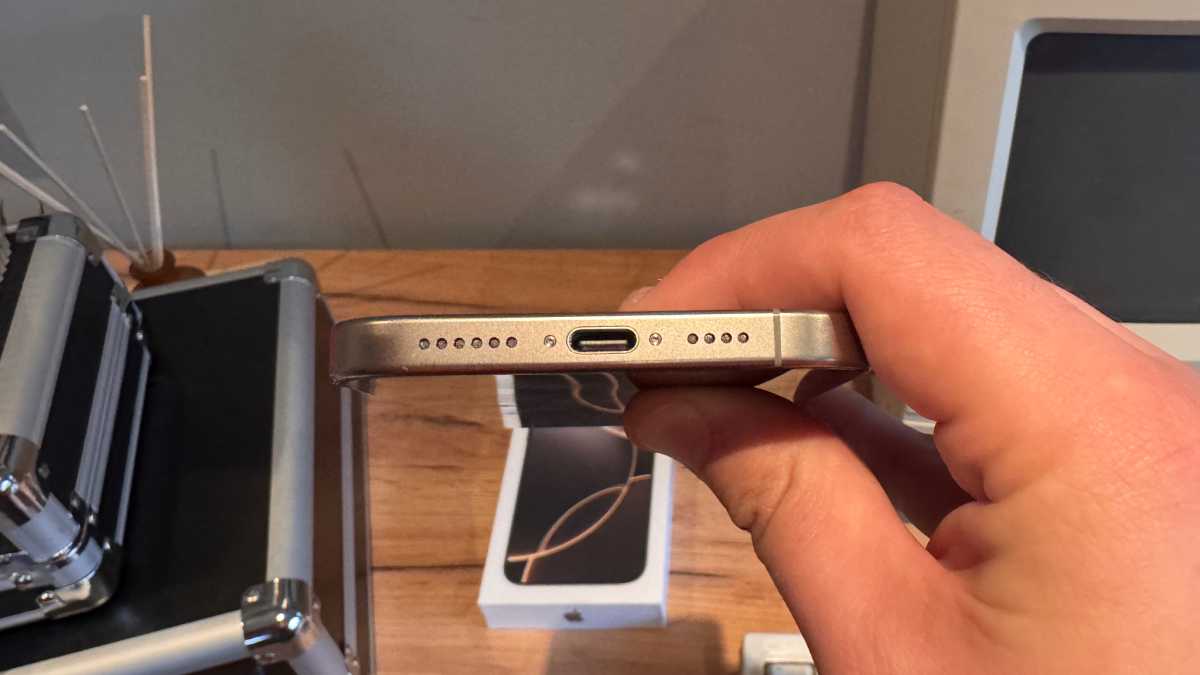
Your iPhone’s USB-C port is a multi-purpose connector for displays, hard drives, and other accessories.
Connor Jewiss / Foundry
Michael Simon contributed to this report.


